Command line (mdbrowser)
mdbrowser does the browsing and monitoring of the app from a terminal or a script: list endpoints, browse the address space, read and write values, stream live values, and create and run the app's sessions. It speaks the same protocols as the app: OPC UA, EtherNet/IP (Logix) and MQTT (Sparkplug B, CloudEvents).
Install
brew install zaoralj/tap/mdbrowser # macOS and Linux
Or download mdbrowser-<version>-<os>-<arch>.tar.gz from the releases and put mdbrowser on your PATH. It is a single self-contained file; no .NET installation is needed.
Commands
Tip: in the app, right-click nodes in the Address Space or rows in Watch ▸ Copy mdbrowser command to get a ready command line for them, with the endpoint and options of the connection.
| Command | Does |
|---|---|
mdbrowser endpoints <url> | the endpoints of an OPC UA server: security mode, policy, logins, certificate thumbprint |
mdbrowser browse <url> [node] [--depth N] | the address space below a node (default: the root) |
mdbrowser read <url> <node>... [-R] | the current value and data type of one or more variables |
mdbrowser monitor <url> <node>... [-R] | live values until Ctrl+C, --duration or --count |
mdbrowser write <url> <node> <value> | write a value (or several with --set); asks first unless --yes |
mdbrowser session create <file> <url> <node>... | a session file for the app with these nodes as its watch list |
mdbrowser session add <file> <node>... | adds nodes to a session's watch list; everything else in the file is kept |
mdbrowser session remove <file> <node>... | removes items from a session's watch list (rm; -R for a folder), offline |
mdbrowser run <session> | the watch list of a session file saved by the app (.mdbsession), each item at its refresh time |
mdbrowser tui <url or session> | a full-screen browser in the terminal: tree, attributes, live values, trend, write, record; see below |
mdbrowser mcp --endpoint <url>... --recording <file.db>... | an MCP server for AI agents (machines and SQLite recordings), read-only; see MCP server |
For the interactive browser, mdbrowser <url> is shorthand for mdbrowser tui <url>.
mdbrowser <command> --help lists every option.
mdbrowser opc.tcp://plc:4840
mdbrowser endpoints opc.tcp://plc:4840
mdbrowser browse opc.tcp://plc:4840 /Objects/Line1 --depth 2
mdbrowser read eip://10.0.0.5/1,0 "/Controller Tags/Motor.Speed"
mdbrowser monitor mqtt://broker/plant/# /Topics/plant/line1/status/speed --duration 10m
mdbrowser monitor opc.tcp://plc:4840 /Objects/Line1 --recursive --depth 3
mdbrowser run line1.mdbsession --format csv > shift.csv
Nodes
A node is either a path of display names from the root, starting with /, or an id:
/Objects/OpcPlc/Telemetry/Basic/StepUp,/Controller Tags/Motor.Speed,/Topics/plant/line1/status,"/Sparkplug B/Plant1/Edge1/Press1/Temperature"(quote paths with spaces);ns=3;s=StepUpor the portablensu=http://…;s=StepUp(OPC UA), a tag name (Logix), an MQTT id as the app shows it, e.g.t:plant/line1/status/speedort:plant/line1/status#/speedfor a JSON field.
browse prints full paths, so its output can be passed to read and monitor as it is. The app's MQTT tree is a live cache of messages it has received; a non-retained topic can still be visible there after a fresh CLI connection cannot browse it. monitor accepts an uncached /Topics/... path as a literal MQTT topic and subscribes for future messages. The app's Copy mdbrowser command uses the MQTT id (including JSON pointers) so it doesn't lose that distinction.
Whole folders (--recursive)
With -R / --recursive, read and monitor expand each folder, object or Logix structure to every variable below it, like Monitor folder in the app:
| Option | |
|---|---|
--depth N | levels below each node (default 10) |
--max-items N | at most this many variables in total (default 500); a note on stderr says when the limit was hit |
- Items are named by their path below the node you passed (
Basic/StepUp,Station/Name), so equal names in different folders stay apart. - A variable you pass directly is read or monitored itself. OPC UA properties of variables (EURange, EngineeringUnits) are left out.
- MQTT: a topic with a JSON payload expands to its fields (
status/speed,status/temperature/bearing). - Nothing found within
--depthis an error (exit 1).
Sessions
A session file (.mdbsession) is what the app saves with File ▸ Save: the endpoint, its options and the watch list. The command line reads and writes the same files, so a watch list can go both ways between the app and scripts.
mdbrowser session create line1.mdbsession opc.tcp://plc:4840 /Objects/Line1 -R -r 1000 --trust-all
mdbrowser session add line1.mdbsession /Objects/Line2/Speed "ns=3;s=Pressure"
mdbrowser session remove line1.mdbsession /Objects/Line2/Speed                          # -R removes a whole folder
mdbrowser monitor opc.tcp://plc:4840 /Objects/Line1/Speed --save quick.mdbsession     # watch now, keep it for later
mdbrowser run line1.mdbsession                                                         # or File ▸ Open in the app
- Nodes are saved like the app saves them: portable ids (
nsu=…, stable across server restarts) with their name and path, so Watch can group them by path.-R,--depthand--max-itemswork as forread. - Options are saved (user name,
--secure,--trust-all,-ras the session's default refresh); never a password.session addandruntake it from--passwordorMDBROWSER_PASSWORD. session createand--savedon't overwrite an existing file without--force.session addconnects with the file's endpoint, skips nodes already in the watch list and keeps everything else (bookmarks, columns, display formats, monitoring settings).- Nodes given by id are checked with the device first; one that doesn't exist is an error and nothing is written.
session removedoesn't connect: it matches the path and name as shown, the name alone (every item with it), or the saved id (nsu=…;s=Speed, or justs=Speed). A node that matches nothing is an error and nothing is removed.runandtuifollow their session file: when the app, anothertuiorsession addchanges it,runmonitors the new watch list (rows still watched keep their values and update counts; it reconnects only when the endpoint or its options changed;--duration,--countand--recordcontinue).tuireopens the session, and asks first when that would drop monitored items changed there or a running recording.
Recording to a file
monitor and run record every sample with --record <file>, alongside what they show:
mdbrowser monitor opc.tcp://plc:4840 /Objects/Line1 -R -r 500 --record line1.db       # SQLite
mdbrowser run line1.mdbsession --duration 8h --record shift.db
mdbrowser monitor opc.tcp://plc:4840 /Objects/Line1/Speed --record speed.csv            # CSV
--retention 30d (SQLite only) deletes samples older than that from the file while recording, so an always-on recording doesn't grow without end:
mdbrowser run plant.mdbsession --record plant.db --retention 30d
It is the same file the app writes with Also write to file: SQLite for .db / .sqlite (one more recording in the file each time, queryable with SQL; see Recording to SQLite), CSV otherwise. The app's recording viewer opens either. The file is the store, so a recording can run for days without growing memory.
Writing values
mdbrowser write opc.tcp://plc:4840 /Objects/Line1/Setpoint 42.5
mdbrowser write eip://10.0.0.5/1,0 Program:Main.Recipe "[1, 2, 3]"
mdbrowser write opc.tcp://plc:4840 --set /Objects/Line1/Mode=AUTO --set /Objects/Line1/Setpoint=42.5 --yes
- The value is text, converted to the variable's data type like Write value… in the app: numbers,
true/false, text; arrays comma-separated, optionally in brackets. What each protocol writes is described in the user manual. - It asks first. In a terminal,
writeshows the current and new values and asks for confirmation (default no).--yesskips the question; without a terminal (a script, a pipe) and without--yesit refuses rather than guess. - After writing it reads the values back and prints before, after and the result per item, so a write the device accepted but didn't apply is visible. MQTT values come back through the broker;
writewaits up to 2 s for them. --set node=valuewrites several in one go. Paths split at the first=(values may contain=), ids at the last (--set "ns=3;s=Mode=AUTO"); for a value with=on an id, usewrite <url> <id> <value>.- Exit code 1 when any value was not written; the reason is in the result column (
-f json:written,error).
Full-screen browser (tui)
mdbrowser tui is the app in a terminal, for every protocol: over SSH, on a headless box next to the line, or when a window is one too many.
mdbrowser tui opc.tcp://plc:4840
mdbrowser tui eip://10.0.0.5/1,0
mdbrowser tui mqtt://broker:1883
mdbrowser tui line1.mdbsession          # the session's endpoint, options and watch list, monitored at once
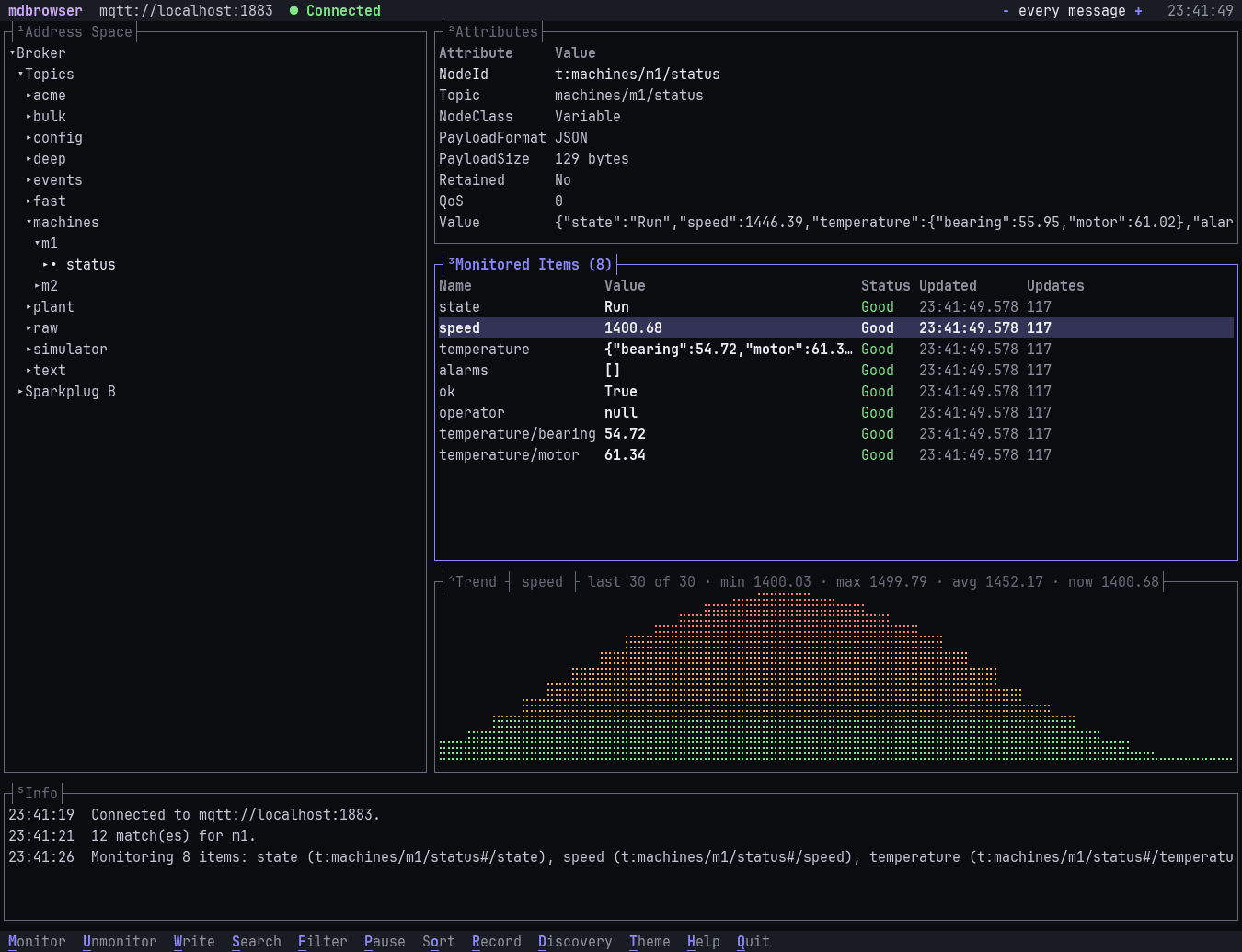
Five panes: ¹ address space, ² attributes of the selected node, ³ monitored items, ⁴ a trend chart of the selected (numeric) item, ⁵ an info log. The header shows the endpoint and its state, the refresh time and, while recording, the file and sample count. Every action is a key; the bar at the bottom shows the main ones and h lists them all. Click a pane to focus it. Drag the border between two panes with the mouse to resize them (or Alt+←/→ for the address space, Alt+↑/↓ for the focused pane's border); a double-click on a border restores its default size. The sizes and the panes hidden with 1 … 5 are remembered per endpoint URL (in tui-layouts.json in the data folder, not in the session file); 0 resets the layout.
| Key | Does |
|---|---|
Tab / Shift+Tab, → / ← / Enter | move between panes; expand and collapse nodes |
1 … 5 / Shift+1 … 5 | show or hide a pane / the pane alone on the full screen (again restores the layout) |
0 | reset the layout: every pane shown, default sizes, the endpoint's saved layout forgotten |
Alt+← → / Alt+↑ ↓ | resize the address space / move the focused pane's border (like dragging it) |
m / u | monitor the variable, or every variable below a folder or structure / stop monitoring it |
w | write a value: shows the current one, asks first, reads it back |
s | search the address space by name or id (Temp*, Motor?) and go to a match |
f / o O / i / p | filter the monitored items / sort by a column, reverse / show the NodeId column / pause the display |
- / + | refresh time of all monitored items |
x / [ ] | reset the trend / fewer or more samples in it (fit the width, 30 at first, 60, 120, 300, 600) |
r | start or stop recording the monitored items: SQLite for .db, CSV otherwise (like --record) |
Ctrl+S | save the monitored items as a session file; an existing one keeps everything else |
Ctrl+O | open a session (the app's recent ones, those in this folder, or any file): its endpoint, options and watch list, in place |
y / a / e | OPC UA: history of the variable / current alarms / live events |
d | MQTT: pause discovery, receiving only the monitored topics (like Pause discovery in the app) |
g / t / l | connection diagnostics / next colour theme / light or dark |
q | quit |
- Colours are the app's themes, the one chosen in the app by default;
--theme Nordand--lightpick another for this run,tandlswitch while running. Status is green, amber or red; stale values are dimmed. - Writes follow the session: a read-only session never writes. Names keep their underscores (
Bulk_0014). - The display can pause (
p) while monitoring and any recording go on;-/+change the rate at the device. - Dialogs take their buttons' letters (
cClose,gGo to,y/n); file prompts complete paths withTab. - It needs an interactive terminal; scripts use
browse,readandmonitor.
Connection options
| Option | |
|---|---|
-u, --user / -p, --password | login (OPC UA, MQTT); the password can also come from MDBROWSER_PASSWORD |
--secure | OPC UA: the most secure endpoint the server offers |
--trust-all | accept untrusted server certificates; for lab networks only |
mdbrowser shares the app's data folder: certificates trusted in the app are trusted here, and the OPC UA client identity is the same, so a server that trusts the app trusts the command line too. run takes the endpoint, login name and options from the session; passwords are never saved, so pass --password or set MDBROWSER_PASSWORD.
Output
--format | In a terminal | Redirected (pipe, file) |
|---|---|---|
text (default) | tables, a tree for browse, a live table for monitor/run that updates in place, coloured status | aligned plain text, one line per update |
json | read/browse/endpoints: a JSON array; monitor/run: one JSON object per line, values keep their type | same |
csv | a header line, then rows | same |
Decoded OPC UA complex values show their named fields. JSON uses nested objects; text and CSV put compact JSON in the value column (quoted as needed by CSV). The OPC UA Decimal built-in is the exception: text and CSV show its exact numeric text, while JSON keeps its lossless Scale and Value fields.
The live table starts with the current values, read when monitoring starts; Updates then counts the changes that arrived (the device's first notification that only repeats the starting value isn't counted). Redirected output and JSON/CSV stream only the notifications.
Text and CSV show names only; add --ids (read, write, monitor, run) for an id column next to the name. When two items have the same name, ids are shown anyway. JSON always includes id, and monitor/run CSV too.
mdbrowser read opc.tcp://plc:4840 /Objects/Line1/Speed -f json | jq '.[0].value'
mdbrowser monitor opc.tcp://plc:4840 /Objects/Line1/Speed -f json | jq -c 'select(.status != "Good")'
Stopping and exit codes
monitor and run stop on Ctrl+C (or SIGTERM), after --duration (30s, 5m, 8h, 1d, 500ms or hh:mm:ss) or after --count updates, and close the connection properly.
| Exit code | |
|---|---|
0 | success, or a stream that ended normally |
1 | an error (one line on stderr, mdbrowser: …), or a read where a value could not be read |
130 | cancelled before the command finished (e.g. Ctrl+C during read) |
Items that can't be monitored are reported on stderr and the rest continue.
monitor and run keep trying to connect, without messages: a device that is off when they start is picked up once it is reachable (a wrong URL, certificate or login still fails at once). If the connection drops while streaming, every item is shown with status BadNotConnected and the client retries until the device is back; then all values are read again so the output is current.