User manual
Machine Data Browser is a viewer for machine data. It connects to:
- OPC UA servers (
opc.tcp://), - Allen-Bradley Logix controllers over EtherNet/IP (
eip://), - MQTT brokers (
mqtt://,mqtts://,ws://,wss://), including Sparkplug B and CloudEvents.
It shows the address space and attributes, watches live values, records them and exports them. It can also write values to a device, but only when you ask it to (see Writing values).
flowchart LR
    A[Enter endpoint · Connect] --> B[Browse the Address Space]
    B --> C[Attributes of the selected node]
    B -->|Enter · double-click · drag| D[Watch list]
    D -->|R · Record selected| E[Recording]
    E --> F[Recording viewer<br/>table · chart · export]
D -->|⌘C · menu| G[Copy / export<br/>table · JSON · CSV · C#]Window
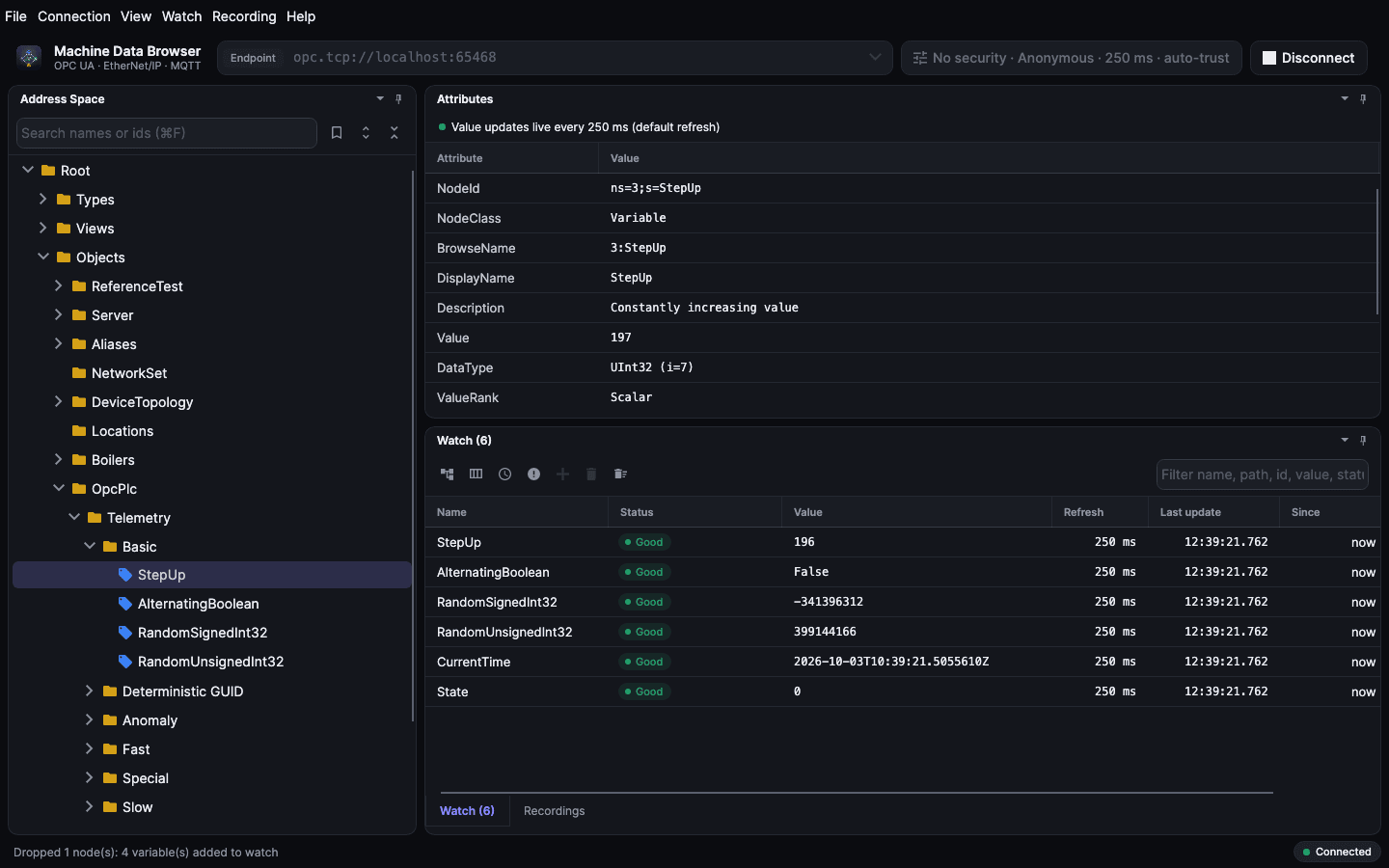
| Pane | What it shows |
|---|---|
| Address Space (⌘1) | tree of the device: OPC UA nodes, Logix tags, MQTT topics and Sparkplug metrics |
| Attributes (⌘2) | attributes of the selected node; a variable's value updates live |
| Watch (⌘3) | monitored values: status, refresh, last update, since, recorded samples, value |
| Recordings (⌘4) | recordings with state, elapsed time, kept samples and details |
- Panes: drag a pane by its tab to another place in the window; the drop indicators show where it lands. Dragging never floats a pane: View ▸ Panes ▸ Pop Out (⌥⌘1–4) does. Dock All Floating Panes (⌥⌘D) and Reset Layout (⌥⌘0) bring them back.
- Minimize a pane: ⌘1–4 (as 1–4 in the TUI) or the pin button in its header moves it to a tab on the window edge (Address Space left, Attributes right, Watch and Recordings bottom); hover or click the tab to slide it out. The same shortcut or pin button puts it back where it was; a pane behind another tab is brought to the front first. Minimized panes stay minimized after a restart.
- Zoom: ⌘+ / ⌘− / ⌘0.
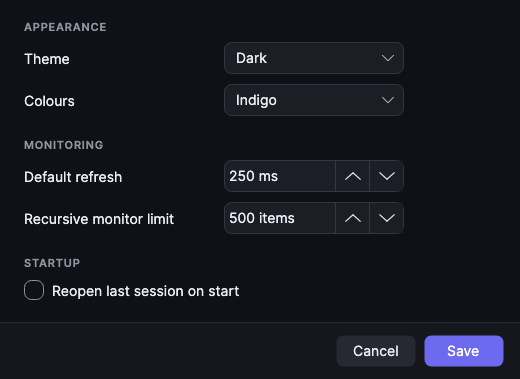
- Theme: View ▸ Theme, or Settings.
- Follow System, Light or Dark (⌥⌘7/8/9) picks the appearance.
- The colour theme sets the palette for both appearances: Indigo (default), Graphite (pure grey, blue), Ocean (sea-glass / deep navy, teal), Forest (sage / deep green), Amber (sand / dark brown), Nord, Solarized and Dracula. Settings previews it while you choose; Cancel returns to the saved one.
- The status bar shows what just happened and the connection state (Connected, Reconnecting…).
- The red bar under the header shows errors; most errors show there instead of closing the app.
Connecting
Type the endpoint and press Enter or click Connect (⌘↩). The ▾ button (or ↓) lists recent endpoints.
| Protocol | Endpoint | Notes |
|---|---|---|
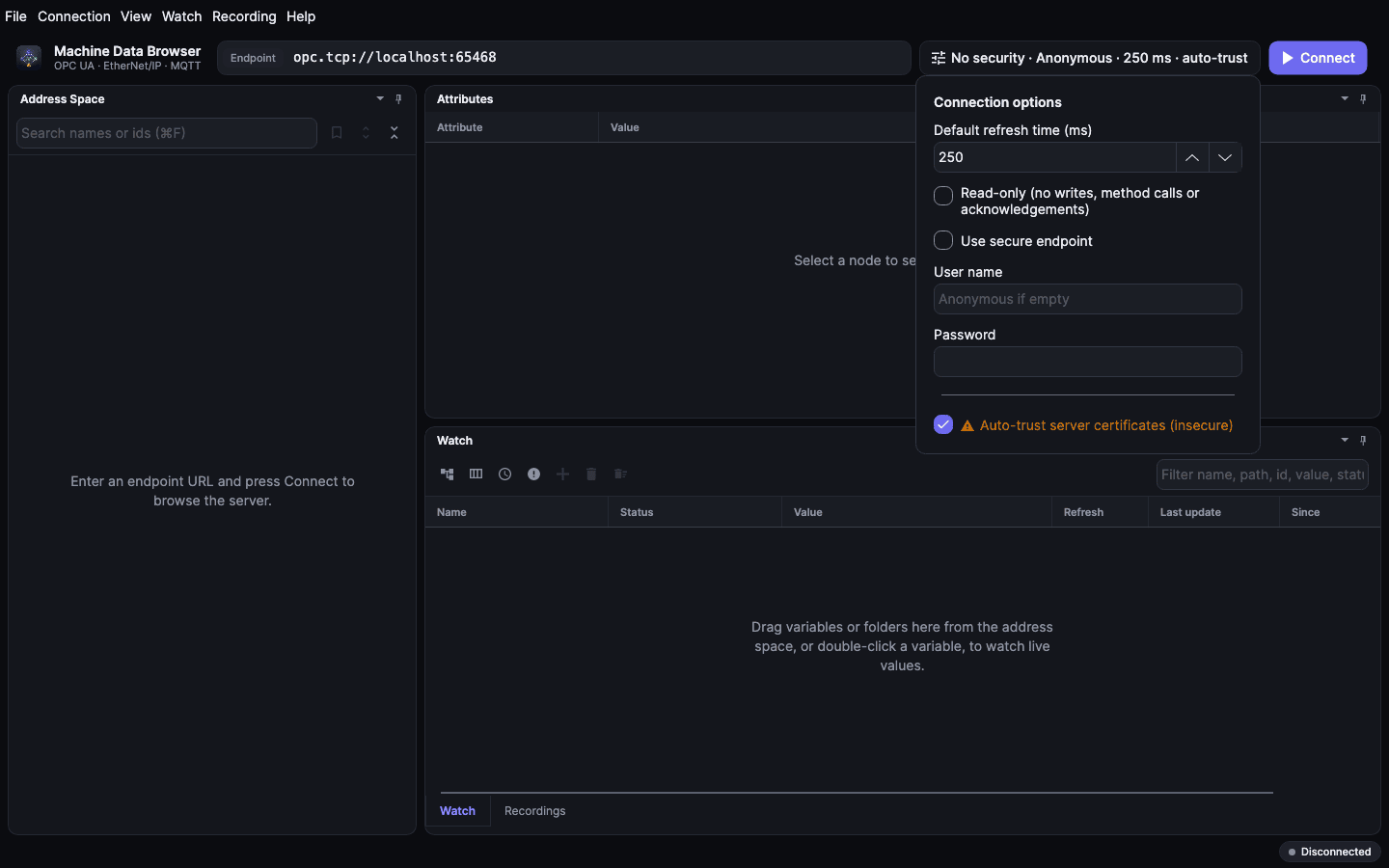
| OPC UA | opc.tcp://host:4840 | ⚙ options: secure endpoint, user name/password, auto-trust certificates |
| EtherNet/IP | eip://192.168.1.10/1,0 | /backplane,slot; defaults to 1,0 |
| MQTT | mqtt://broker:1883 | TLS mqtts:// (8883), WebSocket ws://host/mqtt / wss:// |
| MQTT, narrowed | mqtt://broker/plant/# or mqtt://broker?topic=plant/%2B/status | subscribe only to part of the broker |
| MQTT with login | mqtt://user:password@broker | or user name/password in the ⚙ options |
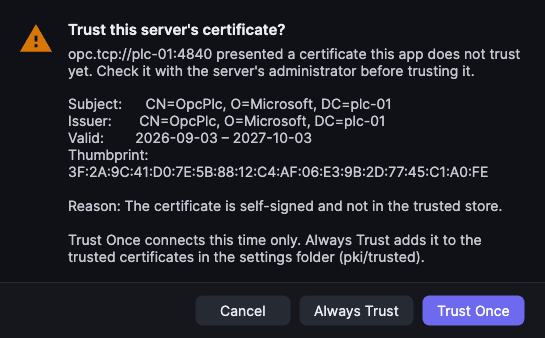
Connection options (⚙): - The default refresh time for new watch items. - For OPC UA and MQTT: user name and password. - For OPC UA only: "Use secure endpoint". - "Auto-trust server certificates" accepts OPC UA server certificates and TLS certificates of MQTT brokers without checking them. Use it on lab networks only. - With auto-trust off, an OPC UA server whose certificate is not trusted yet shows it (subject, issuer, validity, thumbprint and the reason) and asks: Trust Once connects this time only, Always Trust adds it to pki/trusted so later connections don't ask, Cancel doesn't connect.
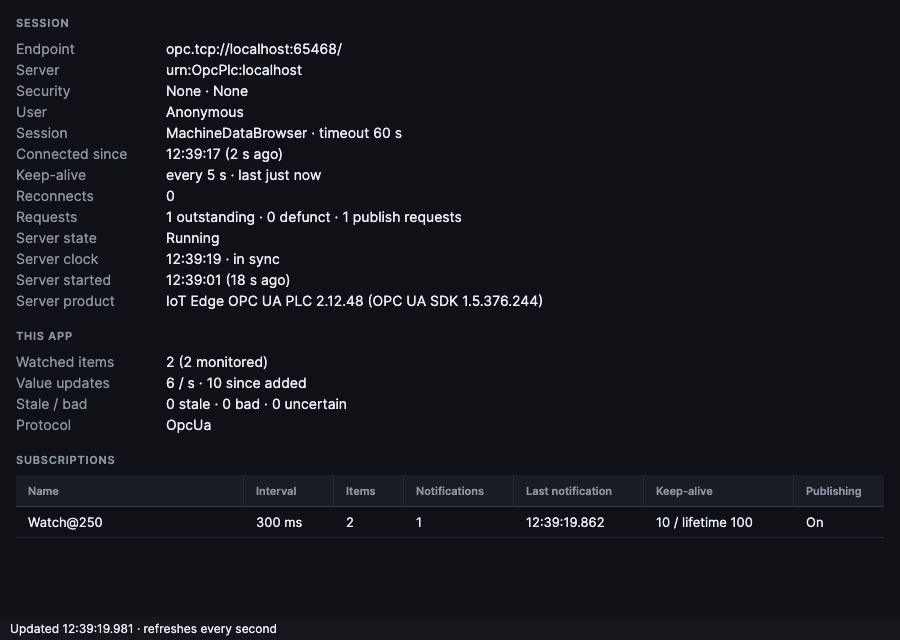
Diagnostics: Connection ▸ Diagnostics… (⇧⌘I) shows the connection live, refreshed every second. Use it when values seem to stop: - Session: how the connection is doing, per protocol: - OPC UA: endpoint, security, user, keep-alive, reconnects, outstanding requests, and the server's state, clock (with its offset from this computer), start time and product. - MQTT: broker, transport and TLS, protocol version, client ID, user, topic filter, keep-alive, reconnects, messages per second (count, bytes, last one), topics against the limit, Sparkplug B nodes and devices online, discovery (on, paused, or the seconds until it pauses) and the limits the broker announced (max QoS, retain). - EtherNet/IP: gateway, path, timeout, link drops, tag counts, reads per second and failures, and per refresh time the tags polled, the last read cycle and how long it took (longer than the refresh time means the PLC can't keep up), with the last error. - This app: watched items, value updates per second, and how many rows are stale, bad or uncertain. - Subscriptions (OPC UA): the publishing interval the server granted (it may differ from the refresh time), items, notifications and when the last one arrived.
Disconnect: ⇧⌘D. If the connection drops, the app shows Connection lost. Reconnecting… and restores the connection by itself. Watch items and recordings continue after that.
Address Space
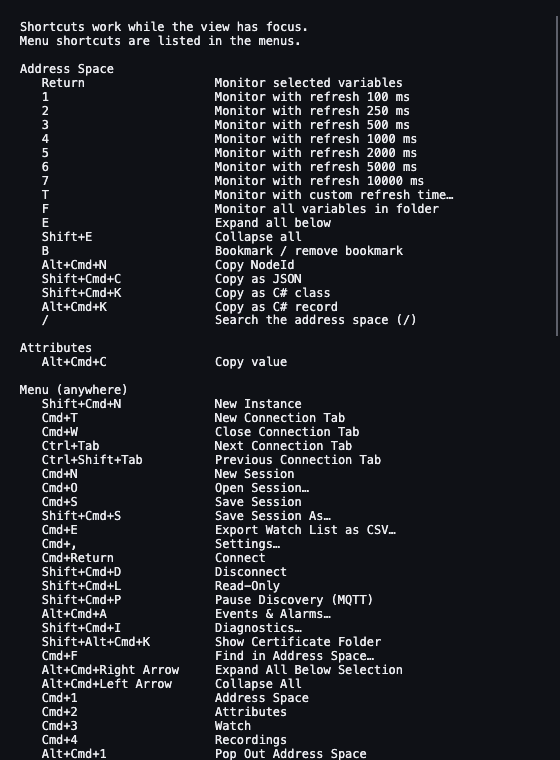
- Expand nodes with a click or the arrow keys (→ expands or steps into the first child, ← collapses or goes to the parent). E expands everything below the selection (up to 5 levels); ⇧E collapses all.
- Type the start of a name to jump to the next visible node with that name.
- If a folder can't be browsed, it shows a red Couldn't load row: hover it for the reason, click it to retry.
- The selected node's attributes appear in the Attributes pane.
- Monitor a variable: Enter, double-click, drag it to Watch, or right-click ▸ Monitor. 1–7 monitor with a refresh of 100 ms … 10 s; T asks for a custom refresh time. F monitors every variable in a folder, including subfolders, up to the limit set in Settings.
- Copy:
- ⌥⌘N copies the NodeId.
- ⇧⌘C copies the current values of the node and everything below it as JSON.
- ⇧⌘K / ⌥⌘K copy C# classes or records that mirror the structure.
- To cherry-pick properties, select several nodes first.
- Right-click ▸ Copy mdbrowser command ▸ browse, read or monitor copies a command line for the selection, with this endpoint and its options (never the password). Folders read or monitor everything below them (
-R). MQTT commands use portable topic ids, including JSON field pointers, so a topic can be monitored even if a fresh CLI connection has not seen a non-retained message yet.
Bookmarks
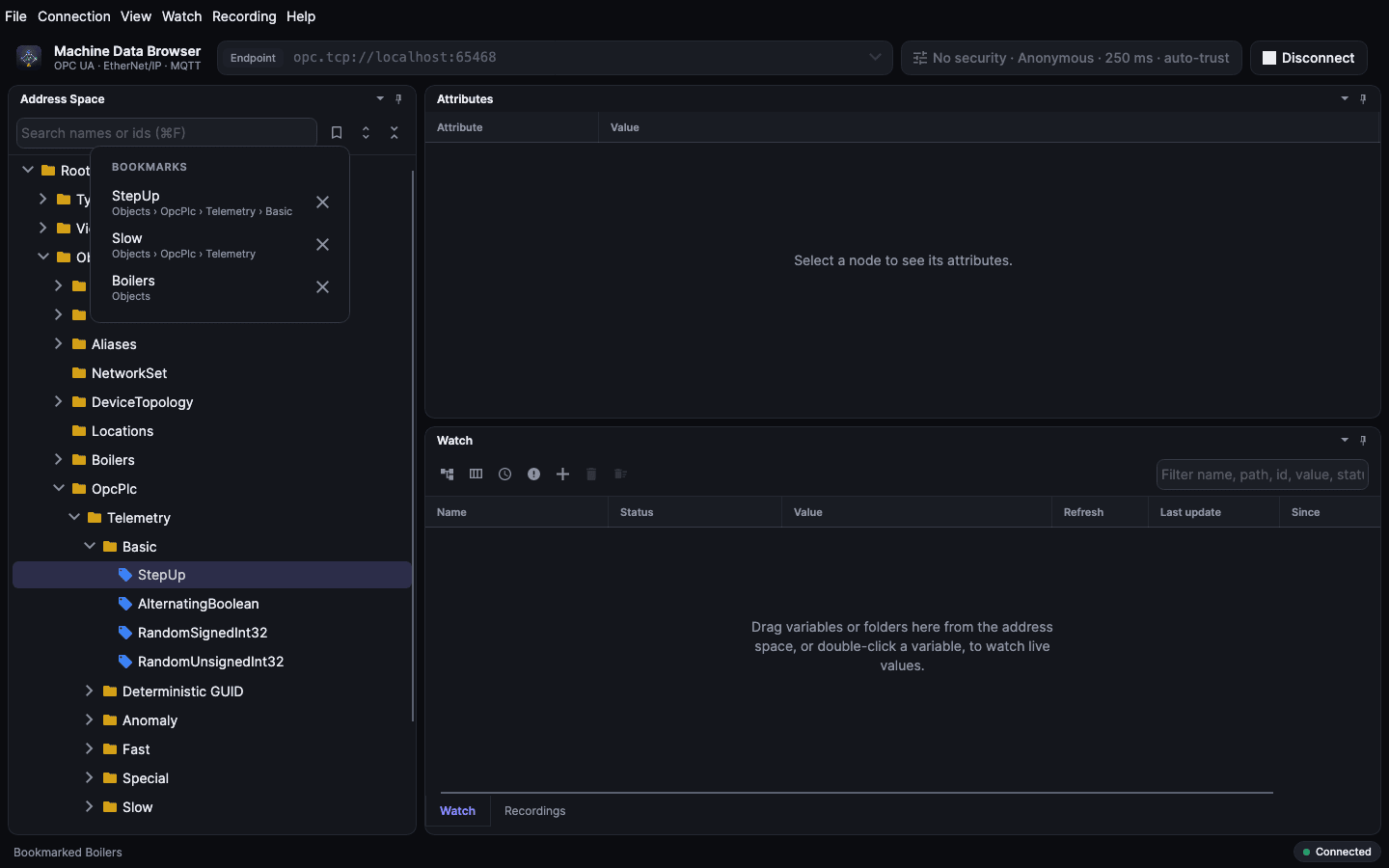
Select a node and press B (or right-click ▸ Bookmark) to bookmark it; again removes it. The bookmark button in the Address Space toolbar lists them with their path: click one to open the tree there, ✕ removes it. Bookmarks are saved with the session (node ids are per server) and work for OPC UA, EtherNet/IP and MQTT.
Search
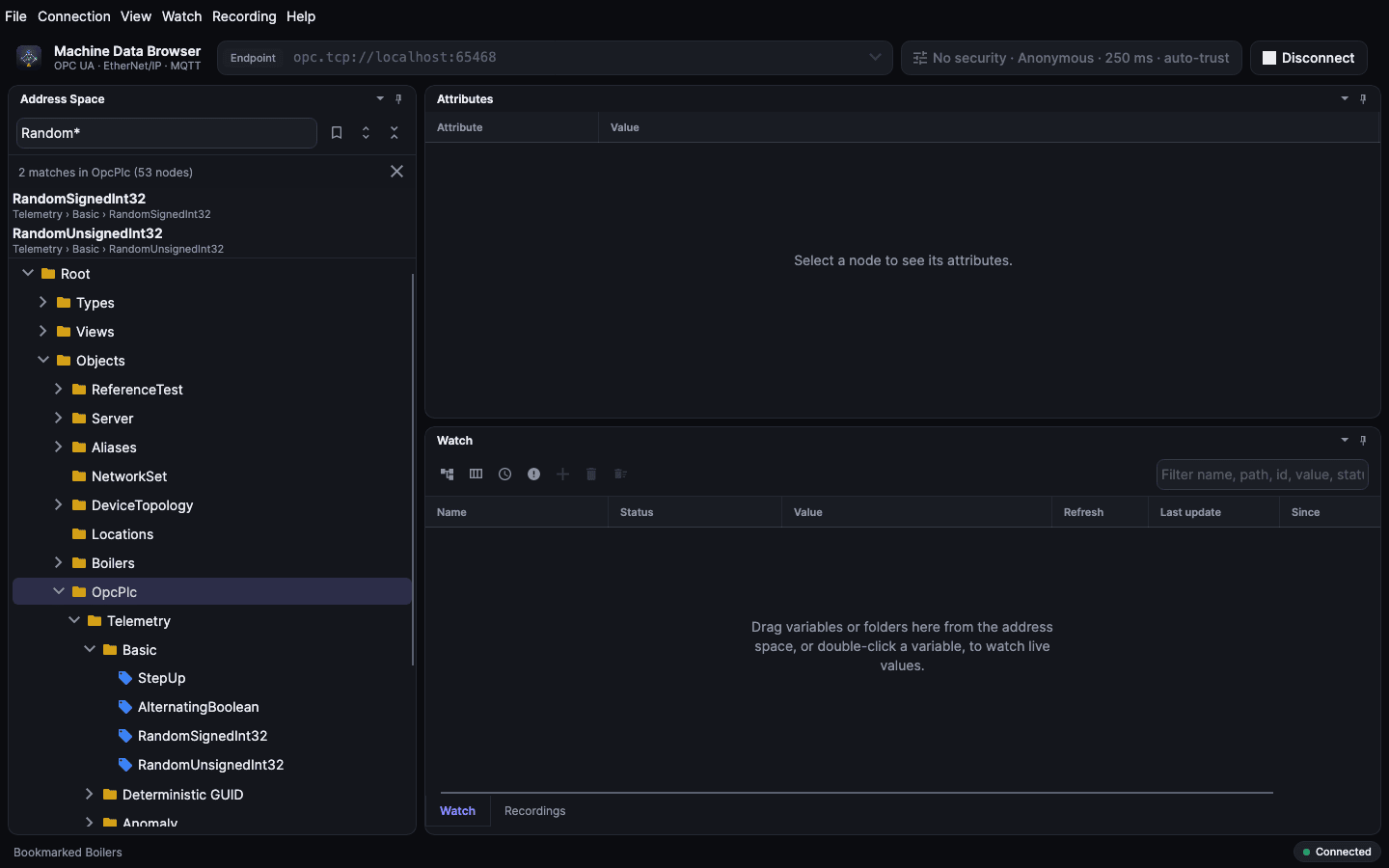
⌘F (View ▸ Find in Address Space…) or / in the tree puts the cursor in the search box above the tree.
- Type part of a name or id and press Enter. Case doesn't matter;
*and?are wildcards (Temp*,Motor?). - Where it searches: below the selected folder, or the whole tree if nothing with children is selected. Select a folder first to search a big server faster.
- Results: each result shows its name and path. ↓ moves into the list; Enter or double-click opens the tree at that node and selects it.
- Esc clears the search.
- Limits: the search browses the device breadth-first, up to 12 levels and 50 000 nodes, and returns at most 1 000 results. The status line says when a limit was reached.
- MQTT: only topics received so far can be found.
What the tree looks like per protocol
- OPC UA: the server's address space. Custom structures are decoded using the server's type definitions.
- EtherNet/IP: Controller Tags and Programs. UDTs and arrays of UDTs expand into members and elements (arrays show up to 1000 elements).
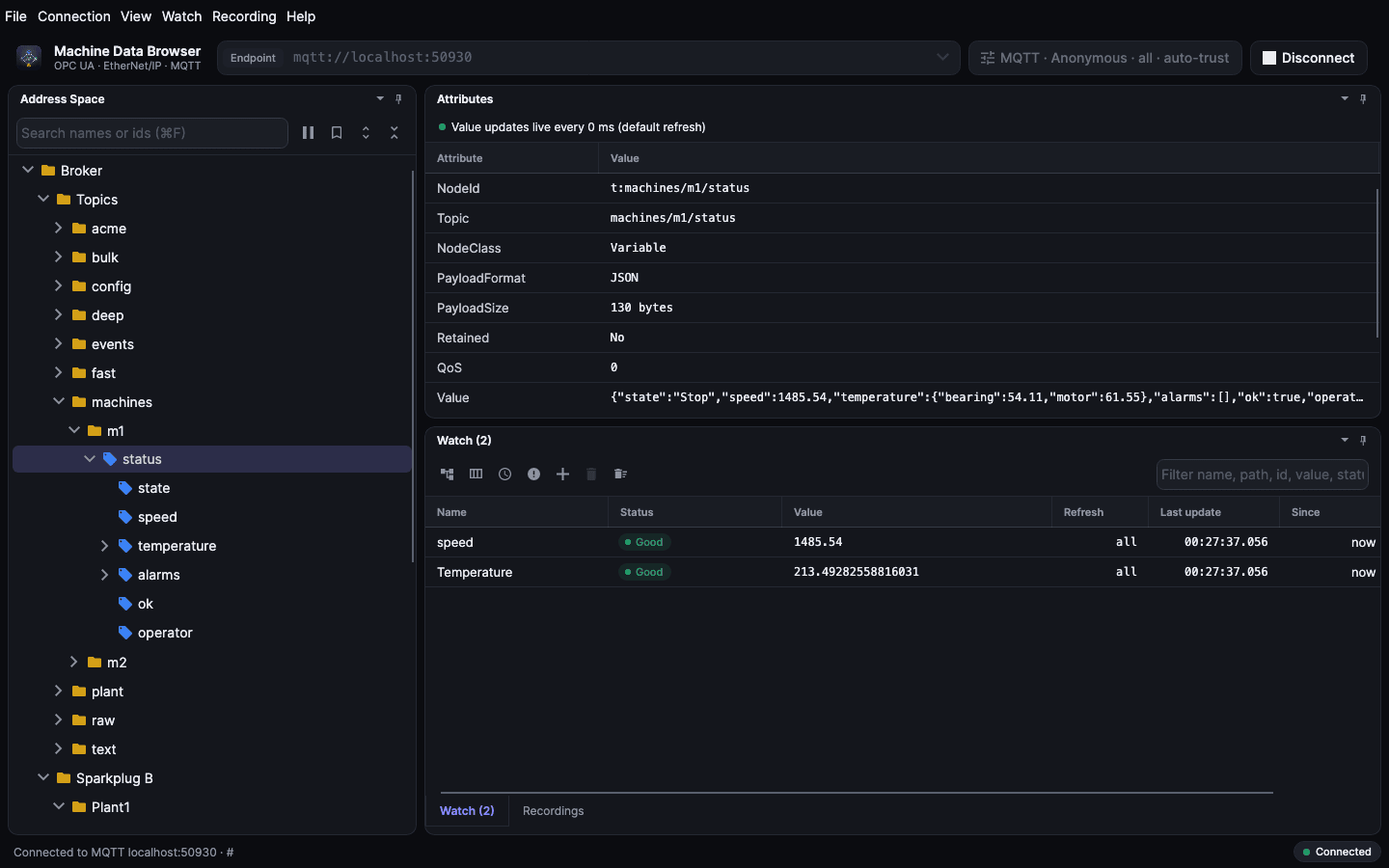
- MQTT, Topics: topic levels as folders. A topic that received a message is a variable.
- A topic can have a value and also subtopics, e.g.
plant/hall1. - JSON payloads expand into their fields, so you can watch or chart a single field such as
machines/m1/status ▸ temperature ▸ bearing. - Attributes show the retained flag, QoS, size, content type and MQTT 5 user properties. A CloudEvent is labelled as structured or binary, with its event type.
- Topics appear as messages arrive. Retained topics appear at once; the tree refreshes itself.
- To find topics, the app receives every message of the topic filter, monitored or not. On a busy broker that can be thousands per second. Once you have what you need in Watch, pause discovery: the ⏸ button in the Address Space toolbar (it turns into ▶ to resume) or Connection ▸ Pause Discovery (⇧⌘P). Then only the monitored topics are received (for Sparkplug metrics, everything of their edge node and device, so births and deaths still count). New topics don't appear and unwatched values in the tree stop updating until you resume. Connecting again resumes it.
- To pause on its own, set Pause discovery after (s) in the connection options (⚙, MQTT only, saved with the session): the app browses the whole topic filter for that long after connecting, then pauses. Pausing or resuming by hand before then cancels it. Connection ▸ Diagnostics shows the discovery state and the countdown.
- MQTT, Sparkplug B: group ▸ edge node ▸ device ▸ metrics. A metric name with
/, such asMotor/Speed, becomes a folder. - When a node or device dies (NDEATH/DDEATH), its metrics turn Bad (no communication) until it is reborn.
- Metrics named
alias 101were published before the app saw the device's BIRTH message. They get their real names at the next birth. The app does not request a rebirth.
Watch
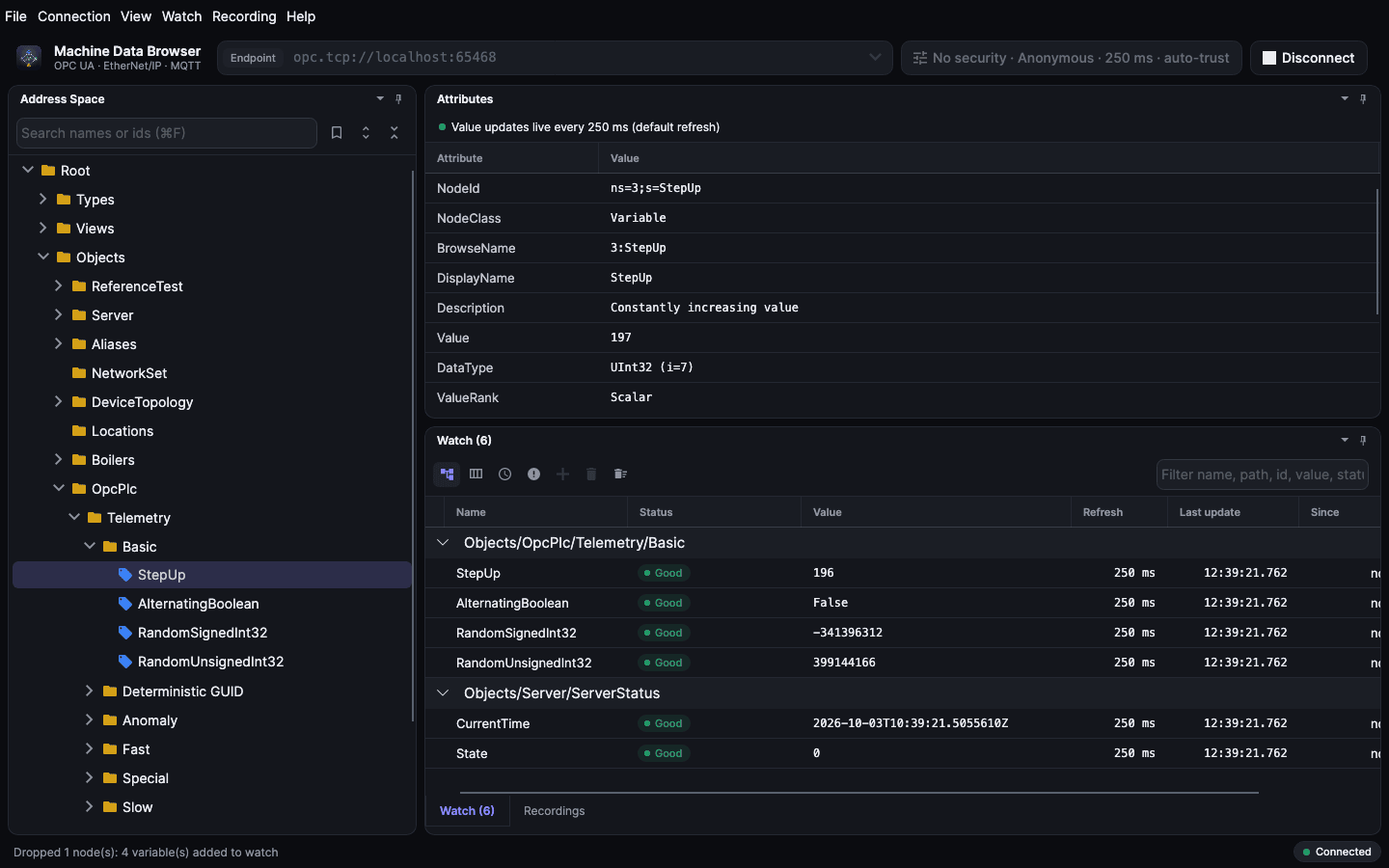
Each row shows Name, Status, Value, Refresh, Last update, Since and Recorded. NodeId and Source time are hidden columns; the ⫼ button shows or hides columns. Drag a header to reorder columns, its edge to resize. Column layout and sort order are saved with the session.
- Status and age:
- Since turns amber when a value is stale, i.e. there has been no update for 5× its refresh time (at least 5 s).
- The status column shows Bad or Uncertain in colour.
- If the connection is lost, monitored rows show BadNoCommunication until fresh values arrive; their last values remain visible.
- Select and remove problem rows:
- The clock button (or S) selects stale rows; the ! button (or B) selects bad rows.
- Double-clicking the button, or pressing the key twice, removes them.
- ⇧S selects rows that are stale or bad. ⌥⌘S / ⌥⌘B remove stale / bad rows directly.
- ⇧Delete removes all rows. If recordings are still running, the app asks whether to stop them, close them or keep them running.
- Filter: the box at the top right (or /) shows only rows whose name, path, NodeId, value or status contains the text; Esc clears it. Rows join and leave the filtered list as their values change. ⌘C and the stale/bad selection act on what is shown; the count says how many are hidden.
- Group by path (toolbar button Group by path, or ⇧G): rows are grouped under the folder they sit in, such as
Objects/OpcPlc/Telemetry/Basic; click a group header to collapse it. The setting and each row's path are saved with the session. Rows from session files saved before 0.10.0 have no path and are grouped under (no path); add them again to group them. - Refresh time: 1–7 (100 ms … 10 s), T for a custom time, or right-click ▸ Refresh time.
- OPC UA uses it as the sampling interval, Logix as the poll interval.
- For MQTT it is a maximum update rate: at most the latest value once per interval. 0 means every message; use it for events, CloudEvents or anything where each message matters.
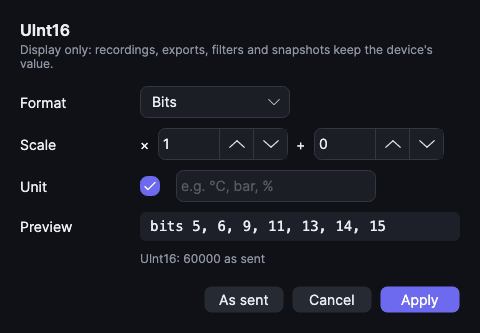
- Display format: right-click ▸ Display format… for the selected rows (every protocol).
- Format: as sent, a fixed number of decimals, or for integers hex (
0x00FF, two's complement for negatives), binary in groups of four, or Bits, the list of set bits (for status and alarm words). - Scale: value × gain + offset, e.g. a raw analog input 0…27648 to 0…100 %.
- Unit: shown after numbers. OPC UA variables with an EngineeringUnits property show theirs automatically; type another, or untick to hide it.
- Display only: filters, snapshots, recordings, exports and Write value use the device's value; the tooltip shows it. Complex values show formatted JSON in the tooltip. Saved with the session.
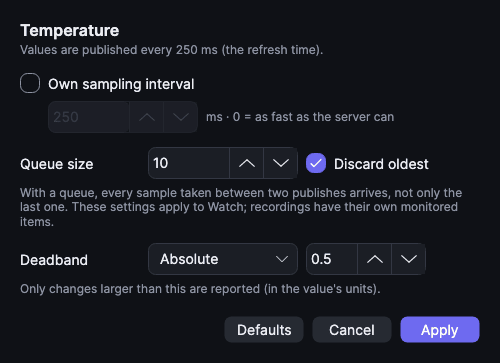
- Monitoring settings (OPC UA): right-click ▸ Monitoring settings… for the selected rows.
- Own sampling interval: how often the server reads the value. The refresh time follows it, so Watch updates at the sampling pace; changing the refresh time afterwards publishes at that rate again.
- Queue size: how many samples the server keeps between publishes; above 1, every sample arrives, not only the last. Discard oldest decides which ones are dropped when the queue overflows.
- Deadband: report only changes larger than an absolute amount, or a percent of the variable's EURange (the server rejects percent without one; the row keeps its previous settings).
- Rows refreshing at another rate than the default, or with a queue or deadband, show ⚙ next to the refresh time; the tooltip lists what differs. Settings are saved with the session and kept when the refresh time changes. Recordings use their own monitored items and are not affected.
- Recorded values:
- A red dot marks a row that is being recorded; Recorded shows how many samples are kept.
- Space, G, double-click or the chart button in the Name cell opens that item's recorded values. Double-click on a row that isn't recorded shows it in the address space; so does Enter.
- Copy:
- ⌘C copies the selected rows (or all rows) as a table that pastes into Excel or Numbers.
- ⌥⌘C copies the value, ⌥⌘N the NodeId; ⌥⌘J copies the values as JSON; ⇧⌘C copies the rows as JSON.
- File ▸ Export Watch List as CSV (⌘E).
- Right-click ▸ Copy mdbrowser command ▸ monitor or read copies a command line for the selected rows (all rows when none is selected), with their refresh time when they share one. MQTT rows use portable topic ids.
Snapshots
A snapshot saves the current values of the whole watch list, to compare later, e.g. before and after a change on the machine.
- Watch ▸ Take Snapshot (⌥⌘T) saves it, named with the date and time. Take Snapshot As… (⇧⌘T) asks for a name first, e.g. Line 1 – product A.
- Watch ▸ Take Snapshot of Selected Rows (⇧⌥⌘T, also in the Watch context menu) saves only the selected rows, e.g. a parameter set out of a large watch list. Comparing it leaves other watch rows out instead of listing them as only after; the list shows it as selection.
- Watch ▸ Take Snapshot of Folder… (⇧⌥⌘F, or right-click a folder or structure in the address space) reads every variable below the selected node once and saves the values under a name you choose, without adding them to Watch; e.g. a machine's settings on a date. Items are named by their path below the folder (
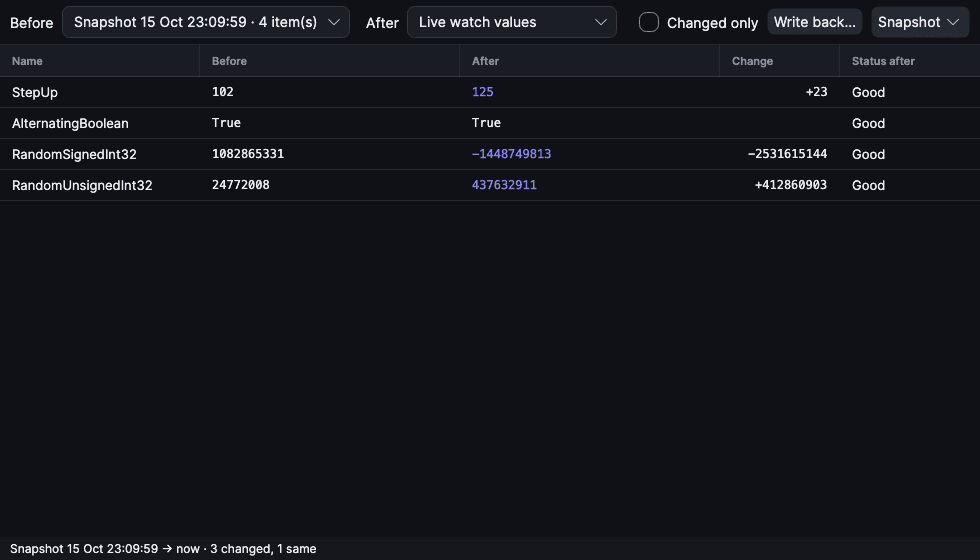
Drive/Speed); subfolders count, up to the Monitor folder limit in Settings. A value that can't be read is saved as Bad and never written back. - Watch ▸ Compare with Snapshot… (⌥⌘Y) shows Before (a snapshot) next to After: the live watch values, updated every second, or another snapshot.
- Items are matched by NodeId. Change shows the difference for numbers, changed for other values, and only before / only after for items in one side only. A status change counts as a change.
- Items of a folder, selection or imported snapshot that aren't in the watch list are read from the device every second, so they compare (and write back) without watch rows.
- Changed only hides equal values. ⌘C copies the rows as a table.
- Snapshot ▸ Rename Before… gives the Before snapshot a meaningful name, e.g. Line 1 – product A; Enter renames, Esc cancels.
- Snapshot ▸ Export Before… saves the Before snapshot as JSON, or as CSV (Name, NodeId, Value, Status, Path) for a spreadsheet; Snapshot ▸ Import… adds such a file and selects it as Before. Importing the same JSON file again replaces it; a CSV is named after the file and added each time. Snapshot ▸ Delete Before removes the Before one.
- An imported CSV needs NodeId and Value columns; Name and Status are optional (no Status means Good). Comma or semicolon separators both work; quote values that contain them. Edit values in a spreadsheet and import the file to write a parameter set to the machine.
- Write back… writes the snapshot's values back to the device, e.g. to restore a parameter set after trying something. It works against the live watch values only, and is off in read-only sessions.
- It writes the selected rows, or every row shown when none is selected; rows that are unchanged or whose snapshot status wasn't Good are skipped.
- A bar lists what will change (now → snapshot value) and warns when the snapshot was taken on another endpoint; nothing is written until you click Write. Failures are listed per row below the table.
- Snapshots are JSON files in the
snapshotsfolder of the settings folder (Help ▸ Show Settings Folder). AI agents see the same snapshots throughmdbrowser mcp.
Writing values
The app writes to a device only when you ask it to.
- Read-only sessions: Connection ▸ Read-Only (⇧⌘L), or the check box in the connection options (⚙), turns off everything that changes the device: writing values, calling methods and acknowledging alarms. Browsing, Watch, history, events and recordings work as usual; a method's form still opens to show its arguments. The header shows read-only, and the setting is saved with the session, so a session for a production machine can stay read-only.
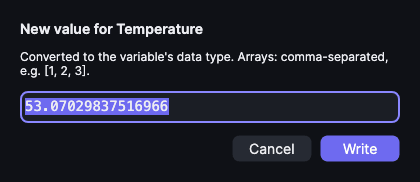
- Where: right-click a variable in Attributes (on the Value row) or one or more rows in Watch ▸ Write value….
- Format: type the value as text; it is converted to the variable's data type. Arrays are comma-separated, optionally in brackets:
[1, 2, 3]. - Per protocol:
- OPC UA: writes the Value attribute. The server decides whether the variable is writable (AccessLevel).
- EtherNet/IP: atomics, atomic arrays and STRINGs. Tags the controller program owns may be rejected (
BadNotWritable). - MQTT: a topic is republished with the same payload kind, retain flag and properties; a JSON field republishes the last document with the field changed; a Sparkplug B metric is sent as a command (NCMD/DCMD).
- Several Watch rows get the same value; failures are listed per item.
Calling methods (OPC UA)
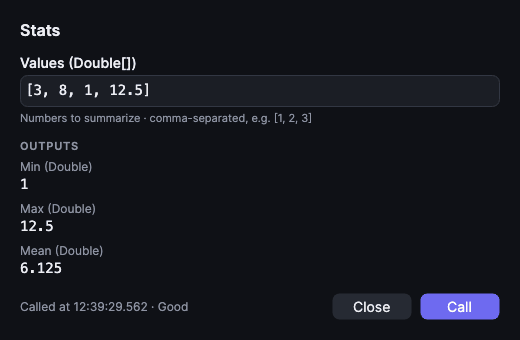
Double-click a method in the address space, or right-click ▸ Call method…. The form lists each input argument with its name, data type and description; type the values as text (like Write value: arrays comma-separated, [1, 2, 3]) and press Call (Enter). The outputs appear below the arguments; the form stays open to call again.
- The method is called on the object it sits under in the tree.
- A value that doesn't fit its type, a missing argument or an error from the server shows in red at the bottom.
- In the custom test server, Custom ▸ Methods has
Add,GreetandStats(an array argument and three outputs).
History (OPC UA)
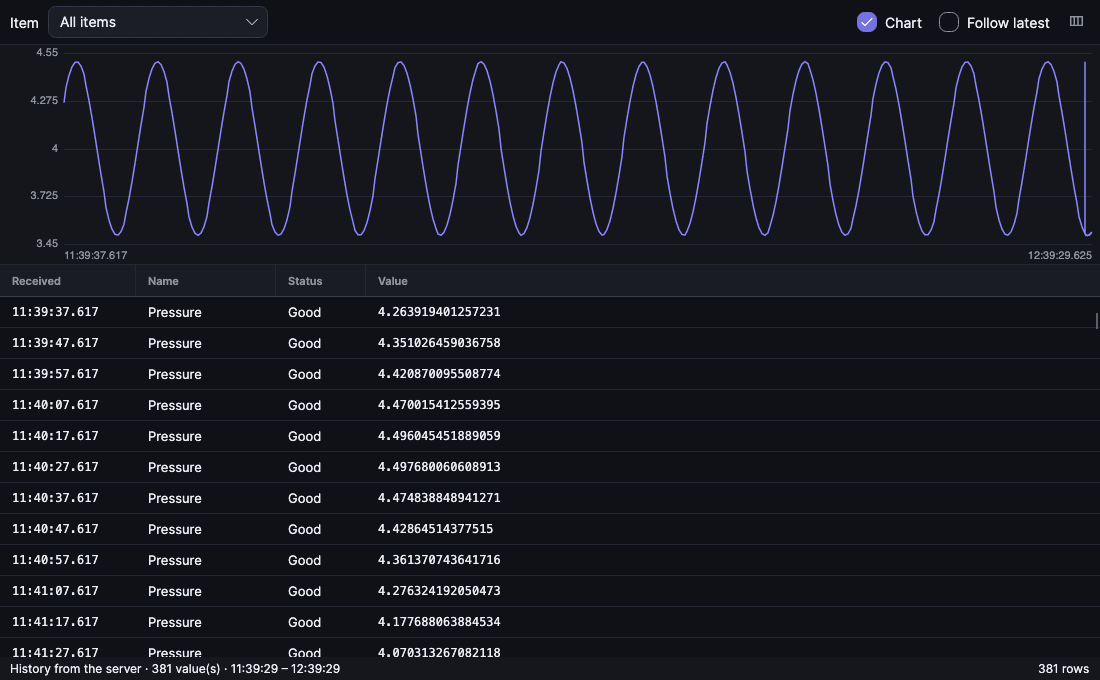
Many OPC UA servers store past values. Right-click one or more variables in the address space or rows in Watch ▸ Show history ▸ Last 15 minutes … Last 7 days. The values open in the recording viewer: a table and a trend chart, oldest first, timed by their source timestamp.
- At most 20 000 values per item (the oldest); the status bar says when an item had more.
- A variable without stored history shows a message instead. Whether a server stores history is visible in Attributes: Historizing and AccessLevel (HistoryRead).
- In the custom test server, Custom ▸ History has Temperature, Pressure and Running with two hours of history.
Events & Alarms (OPC UA)
Connection ▸ Events & Alarms… (⌥⌘A) opens a live window for the whole server. To narrow it to one area or source, right-click it in the address space ▸ Show events & alarms. Each window is its own subscription; closing it (or disconnecting) ends it.
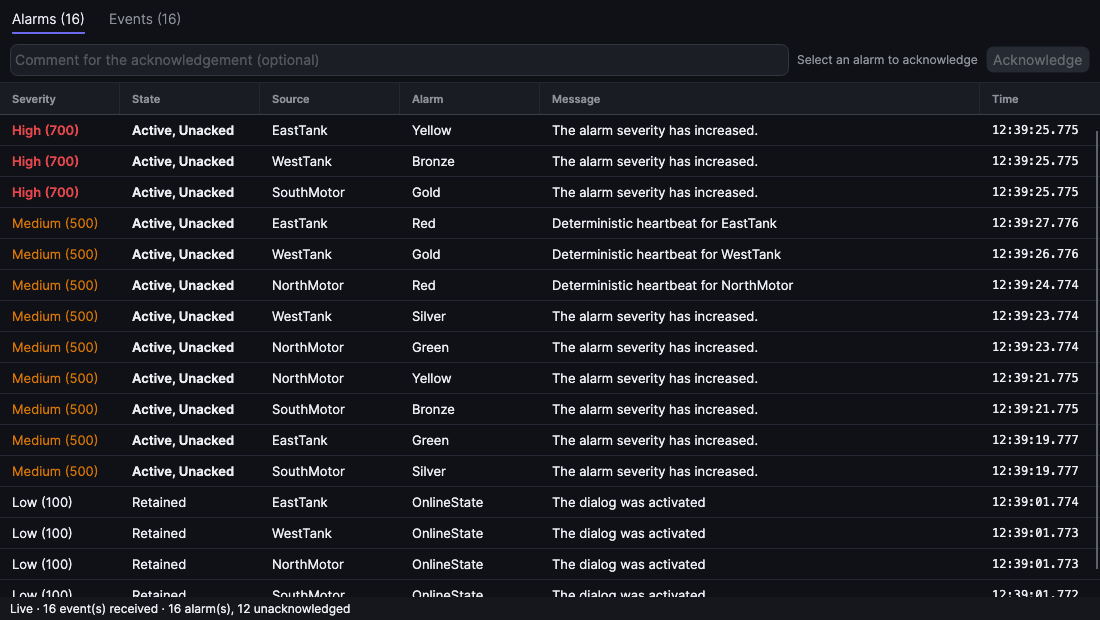
- Alarms tab: alarms the server keeps (active or not yet acknowledged), one row each, most severe first, updated live. Alarms that are already active when the window opens appear at once.
- Acknowledge: click an alarm row that says Unacked, optionally type a comment, then click Acknowledge (or press A). The row changes to Acked, or disappears once the alarm is also inactive.
- The server matches the acknowledgement by the alarm's event id. Some servers send alarms without one (opc-plc, the test server, does); they refuse it, and the status bar says why.
- Events tab: every event and alarm change, newest first: time, severity, source, type, message and alarm state.
- Minimum severity hides less severe events (OPC UA severity is 1–1000: high ≥ 700, medium ≥ 400).
- Pause (Space) keeps the list still; Clear (⌘K) empties it. ⌘C copies the selected rows as a table.
- The window keeps the latest 5 000 events.
- In opc-plc (the test server), the alarms sit under Objects ▸ Server (e.g. Green ▸ East ▸ Blue ▸ WestTank).
Recordings
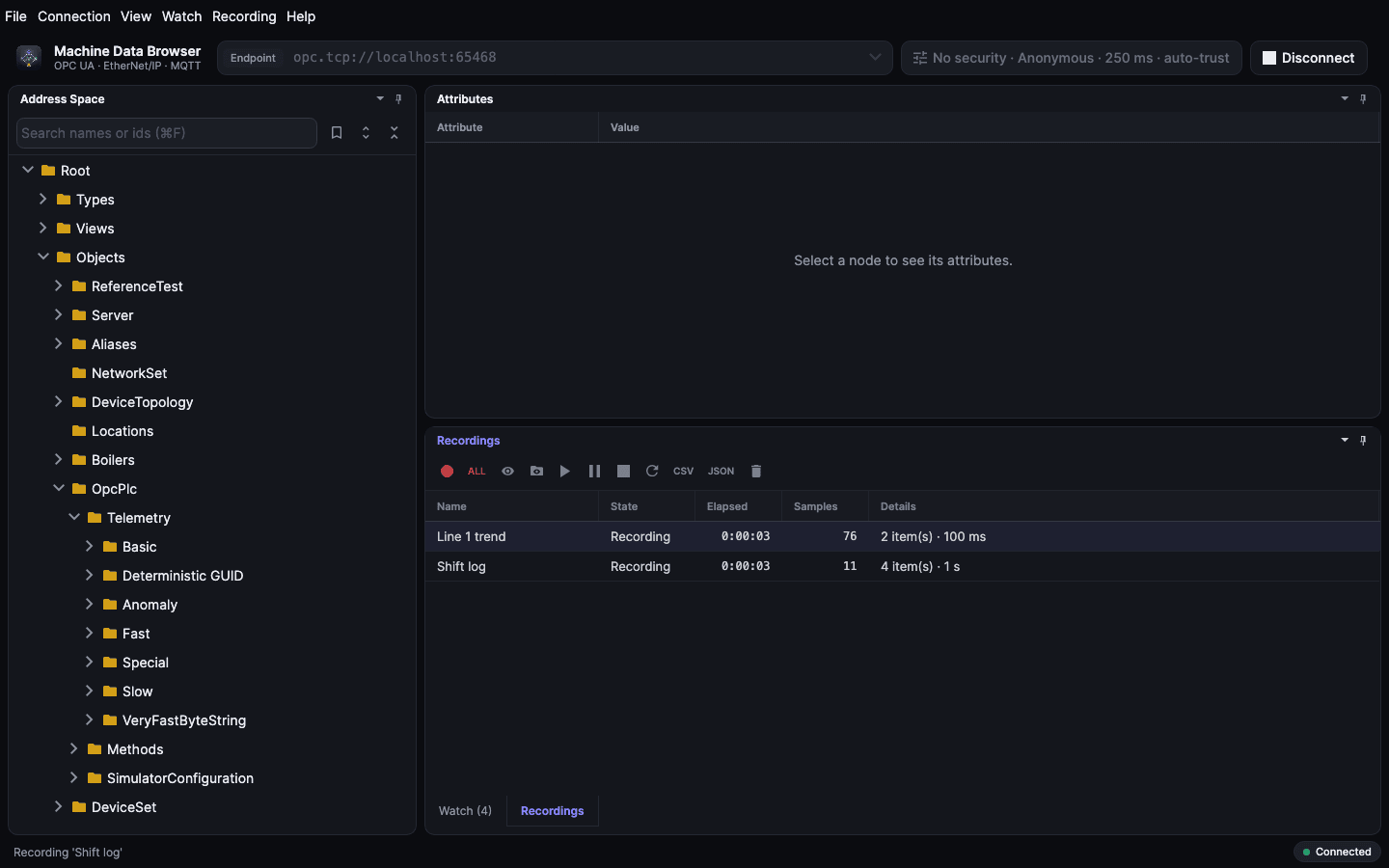
A recording captures the values of its items with timestamps. It keeps running when you remove the items from Watch.
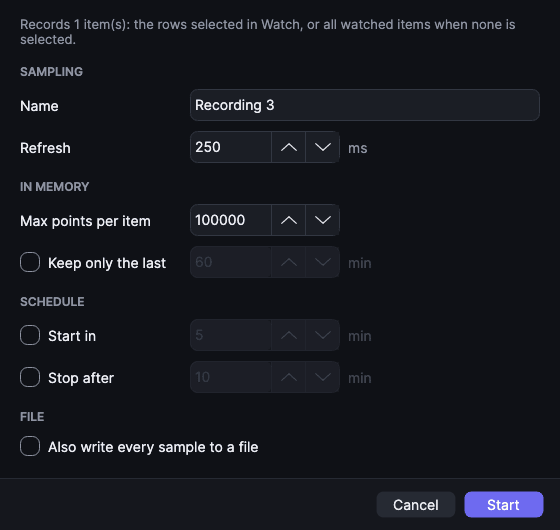
- Start: R records the selected Watch rows (or all of them); ⇧R records everything monitored. The form has:
- Sampling: name and refresh time,
- In memory: Max points per item (the oldest samples are dropped) and Keep only the last minutes,
- Schedule: Start in and Stop after minutes,
- File: Also write every sample to a file, not limited by the in-memory settings. A
.csvfile gets one line per sample; a.db/.sqlitefile is a SQLite database you can query with SQL (see below). The line under the buttons says whether the file is created or added to. - Control (Recordings pane):
- N new recording from the Watch selection, A records everything monitored, Enter opens the viewer.
- S start/resume, P pause, X stop.
- ⇧⌫ reset the history; Delete close (discards the history).
- C / J export CSV / JSON; O opens a CSV file and follows it while it is still being written.
- Settings of a running recording: right-click ▸ Settings… (E). Name, refresh time, limits, auto-stop and file change immediately.
- Add items to a recording: in Watch, right-click ▸ Add to recording ▸ name.
Recording to SQLite
Choose a file ending in .db (or .sqlite) with New File…; to add to a file you already have, pick it with Add to Existing… (the save dialog would ask to replace it, although nothing is replaced). Each start of a recording adds a recording to the file, so one file can hold a whole shift or week. Values keep their type: numbers in value_num (booleans 1/0), text in value_text, arrays and structures as JSON in value_json; times are UTC (2026-10-03T12:00:00.000Z).
| Table / view | Holds |
|---|---|
recordings | name, endpoint, refresh, start and stop time |
items | name, path and NodeId of every recorded item |
samples | one row per sample: times, status, value |
sample_view | samples joined with their item and recording: the easiest place to start |
-- average per minute
SELECT strftime('%Y-%m-%d %H:%M', source_utc) AS minute, avg(value_num)
FROM sample_view WHERE name = 'Speed' GROUP BY minute;
-- when was a value not Good
SELECT source_utc, name, status FROM sample_view WHERE status_code <> 0;
Keep in file (days, SQLite only) deletes samples older than that from the file, from every recording in it, and removes recordings left empty, so an always-on recording stays bounded. It is checked when recording starts and once a minute; freed space goes back to the disk gradually (files created by version 0.17 or later).
Open the file with the recording viewer (Recordings ▸ open file, O), the sqlite3 command, DB Browser for SQLite, Python, Excel (ODBC) or Grafana's SQLite plugin. It can be read while it is being recorded.
Recording viewer
Opened with Enter or double-click in Recordings, or from Watch for a single item.
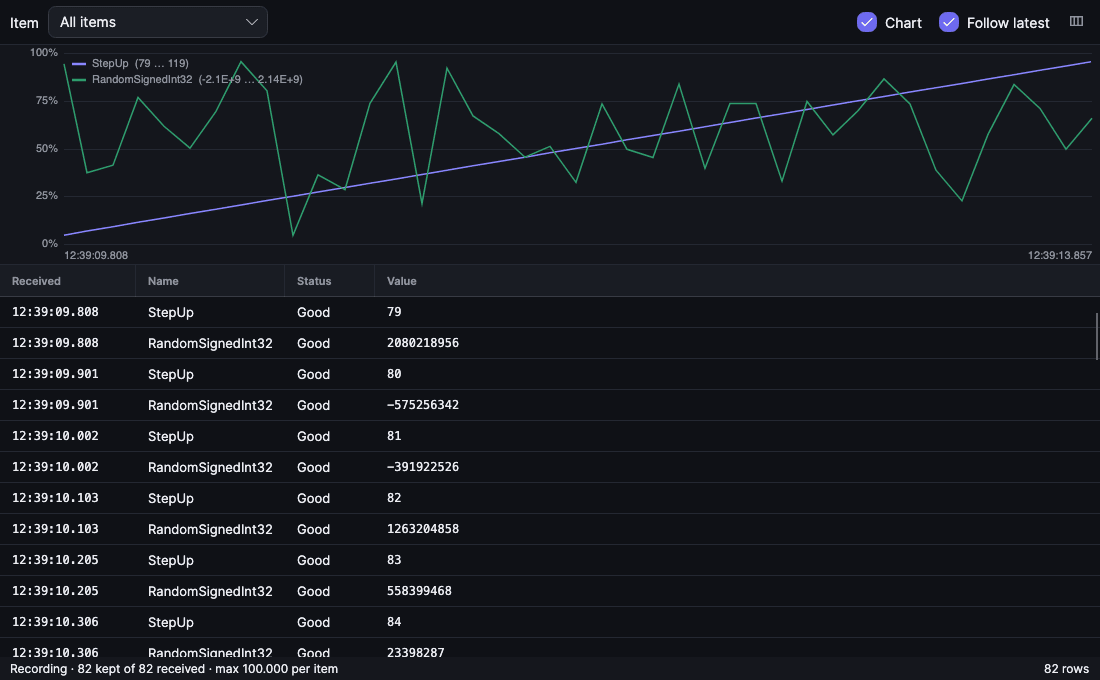
- The table shows the kept samples (Received, Name, Status, Value, and optionally NodeId and Source time). The item box filters to one item.
- Chart: every numeric value is charted above the table; G shows or hides it.
- With one item selected, the chart shows that item.
- With All items, each numeric item gets its own coloured line and a legend.
- When the items' ranges differ a lot, each line is scaled to its own range. The axis then shows percent, and the legend shows each item's real minimum and maximum.
- Numbers, booleans (1/0) and numeric text are charted; other values are left out.
- Selecting a row marks that sample on the chart; clicking the chart selects the nearest row.
- F turns Follow latest on or off. C chooses columns. ⌘C copies the selected rows as a table.
- Times are local (
HH:mm:ss.fff). Hover a time to see the full date and UTC offset. - The status bar shows kept vs received samples and the per-item limit.
Several connections in one window
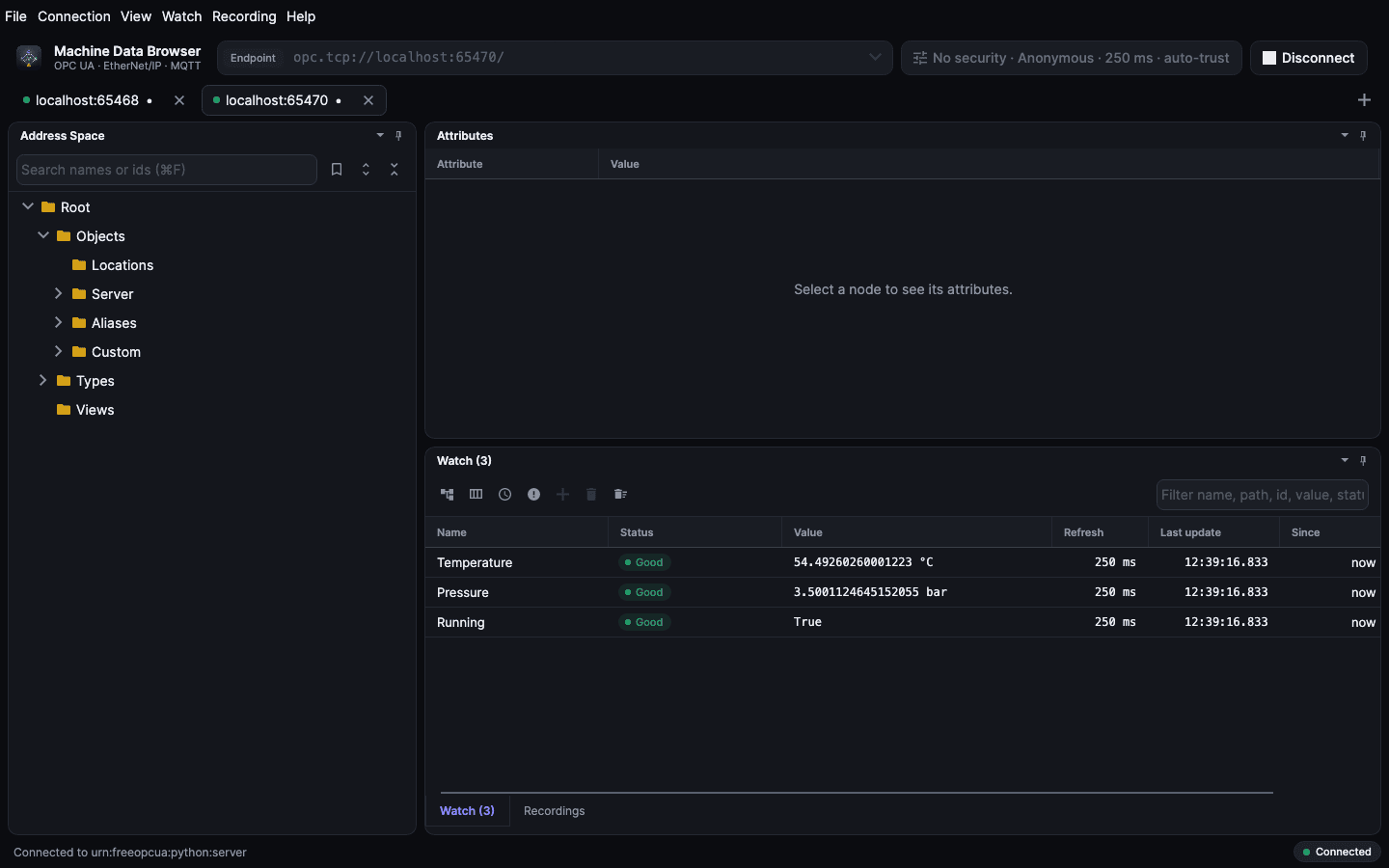
File ▸ New Connection Tab (⌘T) opens another connection in the same window; a tab strip appears under the header. Each tab is a full connection with its own endpoint, address space, Watch list, recordings and session file.
- Click a tab, or ⌃⇥ / ⌃⇧⇥, to switch. The dot shows the connection state (green connected, amber connecting), • marks unsaved changes.
- Each tab keeps its own panes: tree expansion, selection and scroll position stay as you left them.
- Close Connection Tab (⌘W, or ✕ on the tab) asks about unsaved changes and disconnects that connection only. Quitting asks for every tab with unsaved changes and closes all connections.
- The layout of the panes, settings and themes are shared.
Several instances
File ▸ New Instance (⇧⌘N) starts another copy of the app. Each copy has its own connection, watch list and recordings, so you can look at several devices side by side. On macOS the Dock only brings the running app to the front, so use this menu item, or open -n "/Applications/Machine Data Browser.app" from a terminal.
All copies share settings, certificates, the layout and the log. When two copies change settings, the last save wins.
Sessions and settings
- Sessions (
.mdbsession;.opcsessionfiles from before the rename still open): - A session holds the endpoint and its options (read-only, auto-trust, user name; never passwords), the default refresh, bookmarks, and the watch list: rows with their path, refresh time, display format and monitoring settings, plus columns, sort order and grouping.
- New ⌘N, Open ⌘O, Save ⌘S, Save As ⇧⌘S, File ▸ Open Recent.
- Settings can reopen the last session at start.
- When the open session file is changed elsewhere (another window or instance,
mdbrowser session, the MCP server, an editor), the app reloads it. With unsaved changes or running recordings it asks first in a bar: Reload opens the file as it is now, Keep mine keeps the window (saving then overwrites the file). - Settings (⌘,): appearance and colour theme, default refresh time, the item limit for "monitor all variables in folder", and whether to reopen the last session at start.
- Data folder: Help ▸ Show Settings Folder (⌥⇧⌘,). On macOS it is
~/Library/Application Support/MachineDataBrowser. It holds: settings.jsonandlayout.json,- the
pki/certificate stores (Connection ▸ Show Certificate Folder), logs/machinedatabrowser.logwith details of every error shown.- The first start after updating from OPC UA Browser copies its
OpcUaBrowserdata folder here.
Quitting
- If the session has unsaved changes, the app asks once: Save, Don't Save or Cancel. Everything keeps running while the question is open.
- Holding ⌘Q quits without asking.
- On quit, recordings are stopped, live CSV files are completed and the connection is closed properly.
Keyboard
Every menu command has a shortcut, and each pane has its own single-key shortcuts. They're shown in the menus, the right-click menus and the tooltips. Help ▸ Keyboard Shortcuts (⌘/) lists them all.
- A pane's shortcuts work when you click anywhere in it, or simply point at it. The same key can do different things in different panes: B bookmarks in the Address Space but selects bad rows in Watch.
- On Windows and Linux, ⌘ is Ctrl and ⌥ is Alt.
- In dialogs, Enter confirms and Esc cancels. Enter or Esc also closes the recording viewer and information windows.
Troubleshooting
| Symptom | What to check |
|---|---|
OPC UA: BadCertificateUntrusted | Answer the trust prompt, or copy the certificate into pki/trusted/certs in the certificate folder |
| OPC UA structure shows as bytes | The server does not publish its type definitions; the raw value is still shown |
| EtherNet/IP: no tags | Only Logix (ControlLogix/CompactLogix) lists tags; check the path (/1,0 = backplane 1, slot 0) |
| MQTT: empty tree | Nothing has been published yet on the filter (only retained messages appear at once); check the topic filter in the URL |
| MQTT: new topics don't appear | Discovery is paused (⏸ in the Address Space toolbar is on); resume it with ⇧⌘P |
| MQTT: app busy, high traffic | Narrow the topic filter in the URL, or pause discovery (⇧⌘P) to receive only monitored topics |
MQTT: alias 101 instead of names | The Sparkplug device's BIRTH was published before connecting; names appear with the next birth |
| MQTT: values stop, metrics Bad | The Sparkplug node or device sent a DEATH, or the broker connection is reconnecting (status bar) |
| Something failed | The error bar shows it; details are in logs/machinedatabrowser.log in the data folder |
For local test servers (OPC UA, Logix, MQTT with Sparkplug B and CloudEvents) see simulators.md.